How to Complete the "View Gallery" Quest
During your early hours in Heartopia, you will be bombarded with tutorial objectives. The "View Gallery" quest is one of the very first challenges that teaches you how to navigate the game's core menu system: your in-game Smartwatch.
Step-by-Step UI Guide
Many players get stuck here because the game doesn't explicitly draw an arrow. Don't worry, it only takes two clicks.
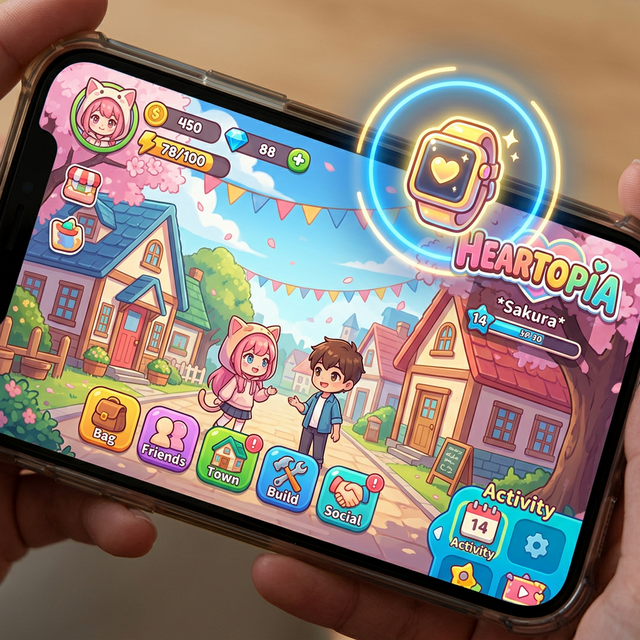
Open Your Smartwatch
Look at your main gameplay screen while standing anywhere in the world. In the top right corner of your HUD, you will see a small, rectangular icon that resembles a smartwatch or mobile device.
Tap or click this button to open your main system menu.
Scroll Down to "Album"
Once the smartwatch overlay opens on your screen, you'll see a grid of "apps" like Settings, Map, and Backpack.
Depending on your screen resolution, you may need to scroll down to the very bottom of these options. Look for the app titled "Album" (or "Gallery" in some localizations). It usually features a picture frame icon.
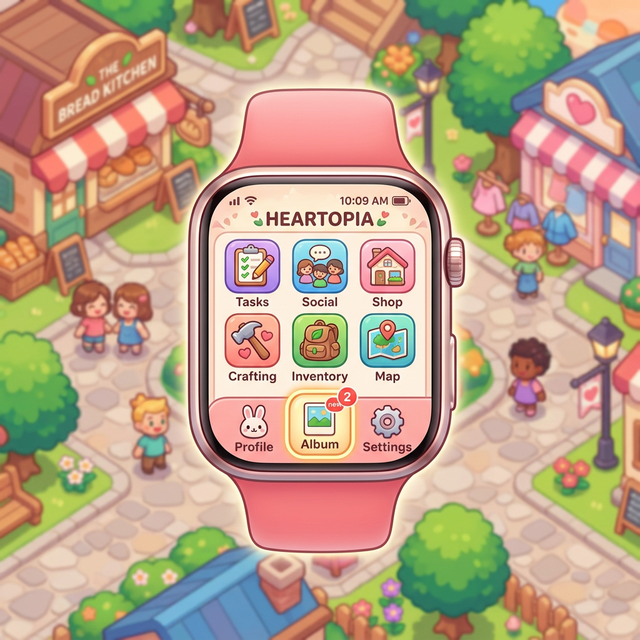
View Your Photos & Complete
Tap the Album app. As soon as the gallery overlay opens and your previously taken photos load, the quest objective on the left side of your screen will flash green and complete automatically! You can now claim your quest rewards.
What Else is the Album Used For?
Any snapshots you take during "Collector's Quests" or photography events are stored here permanently.
Special pictures or artwork gifted to you by your leveled-up pets will appear in a sub-folder.
You can favorite (heart) specific photos to prevent them from being accidentally deleted when clearing storage.